 Dr Mark
Dr Mark documentation
Everything you need to write, organize and polish Markdown documents with Dr Mark on your Mac.
Getting started
Dr Mark requires macOS 14 Sonoma or later and runs natively on Apple silicon and Intel Macs.
- Open Dr Mark. On first launch it offers to become your default app for Markdown files — choose Make Default or Not Now (you can change this later in Settings).
- Choose File ▸ Open… (⌘O) to open a Markdown file, or File ▸ Open Folder… (⇧⌘O) to browse a whole folder in the sidebar.
- Choose File ▸ New File (⌘N) to start a new document.
Dr Mark is sandboxed: it can only read and write files and folders you open yourself. It remembers that permission, so recent files and your open tabs come back after a restart.
Visual and code editing
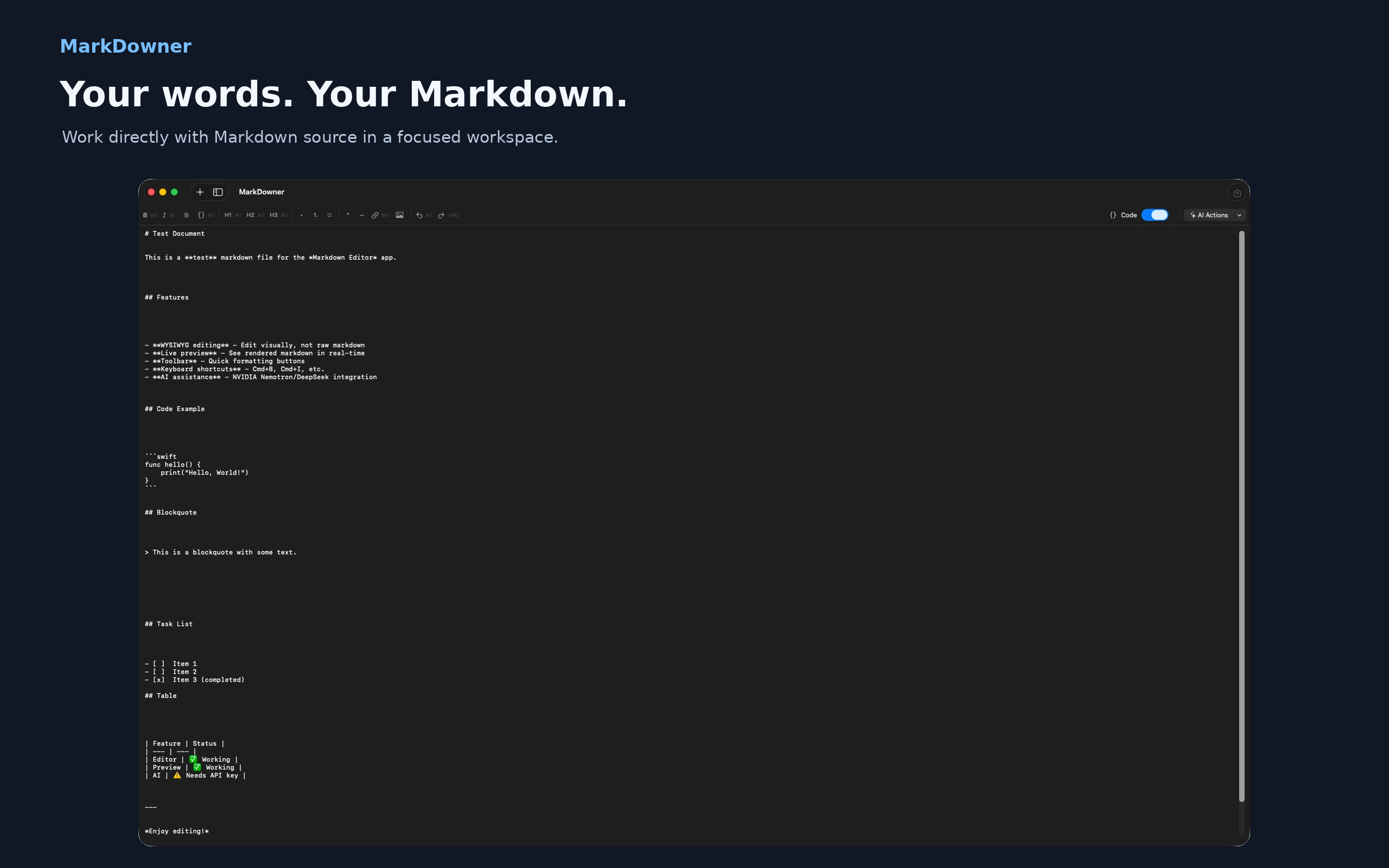
Dr Mark has two views of the same document. Switch between them with the WYSIWYG / Code toggle at the right of the style bar.
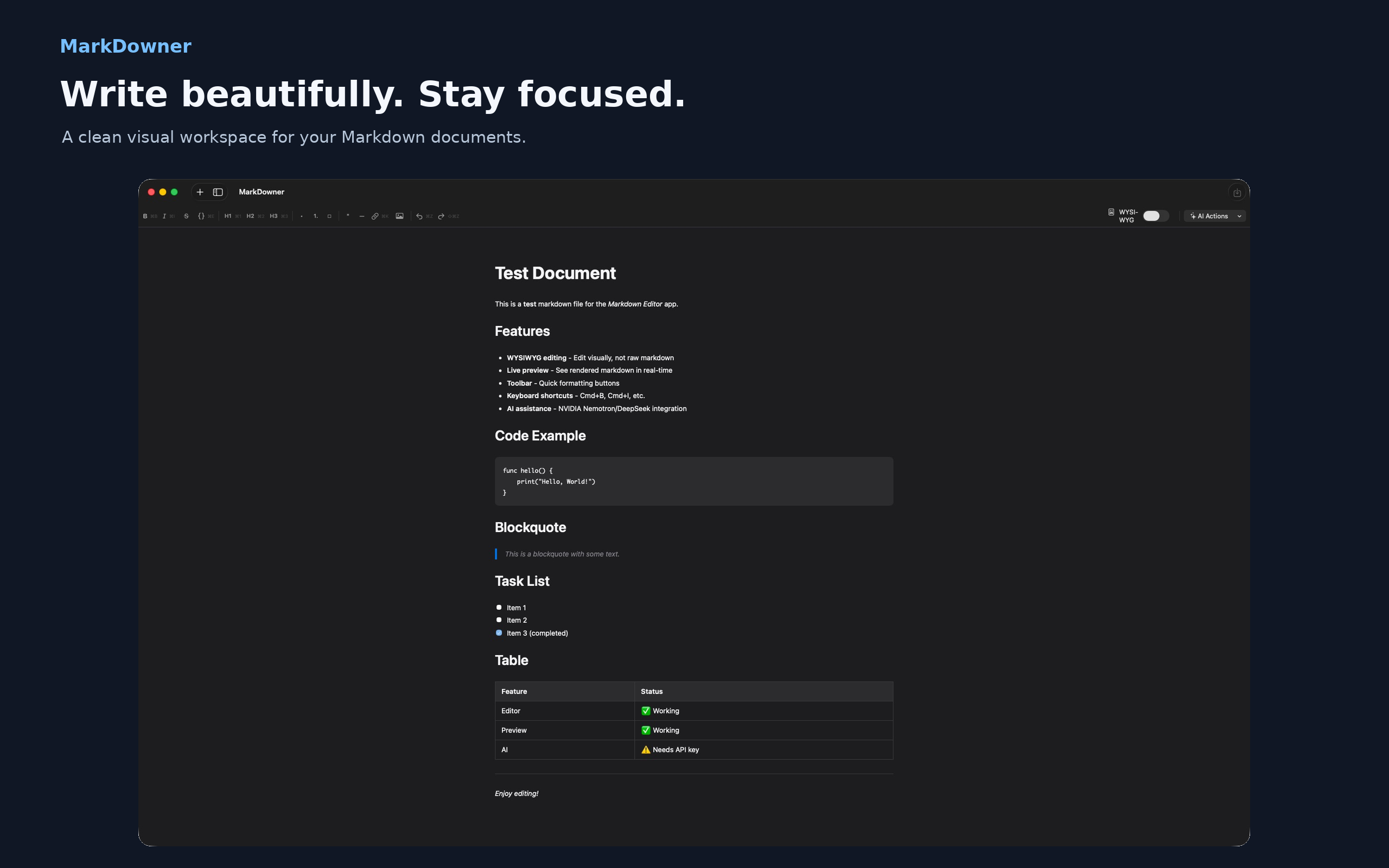
- WYSIWYG — edit formatted text like a word processor. Everything is saved back as standard Markdown.
- Code — edit the raw Markdown source in a monospaced editor.
Markdown shortcuts while typing
In the visual editor, type these at the start of a line followed by a space to format it instantly:
| Type | Result |
|---|---|
#, ##, ### | Heading 1, 2 or 3 |
> | Quote |
- | Bulleted list |
1. | Numbered list |
- [ ] | Task list |
--- | Horizontal rule |
Special blocks
Callouts, math blocks, Mermaid diagrams, the table of contents, front matter, definition lists and footnotes appear as framed, read-only blocks in the visual editor. This guarantees they are saved exactly as written. To change them, switch to the Code view.
Formatting
The style bar above the document gives one-click access to every style. The same commands are in the Format menu with keyboard shortcuts.
- Undo / Redo
- Style menu — Paragraph, Heading 1–6, Quote, Code Block
- Inline styles — Bold, Italic, Strikethrough, Highlight, Superscript, Subscript, Inline Code, Clear Formatting
- Lists — Bulleted, Numbered, Task
- Blocks — Quote, Code Block, Link, Image, Table, Horizontal Rule
- Insert menu — see below
Select text first to apply a style to it; with nothing selected, Dr Mark inserts placeholder text you can type over. Applying Highlight, Superscript, Subscript or Inline Code again removes it.
Inserting content
Use the Insert menu in the style bar or the menu bar:
| Item | Inserts |
|---|---|
| Link… (⌘K) | Asks for a URL and links the selected text |
| Image… | Asks for an image URL or a path relative to the document |
| Table (⌥⌘T) | A 3-column table you can edit in place |
| Code Block | A fenced code block |
| Inline Math / Math Block | $…$ and $$…$$ formulas |
| Mermaid Diagram | A ```mermaid diagram block |
| Footnote | A numbered reference at the cursor and its note at the end of the document |
| Definition List | A term followed by : definition |
| Table of Contents | [toc], built from your headings |
| YAML Front Matter | A --- metadata block at the top of the file |
| Callout ▸ Note, Tip, Important, Warning, Caution | GitHub-style alert blocks |
Supported Markdown
Dr Mark reads and writes standard Markdown plus popular extensions:
# Headings, **bold**, *italic*, ~~strikethrough~~, `code`
==highlight==   H~2~O   x^2^   :smile:   #tag   @mention   [[Wiki Link]]

- [x] Task lists        | Tables | too |
1. Numbered lists       |--------|-----|

> [!NOTE]
> GitHub callouts (NOTE, TIP, IMPORTANT, WARNING, CAUTION)

!!! tip "MkDocs admonitions"

$$ e^{i\pi} + 1 = 0 $$

```mermaid
graph TD; A-->B
```

Term
: Definition

Footnote reference[^1]

[^1]: Footnote text.

[toc]
Links and email addresses are detected automatically, and straight quotes and dashes are rendered as typographic ones. For safety, raw HTML in documents is shown as text rather than executed.
Files, folders and tabs
Opening
- Open… opens one or more files, each in its own tab.
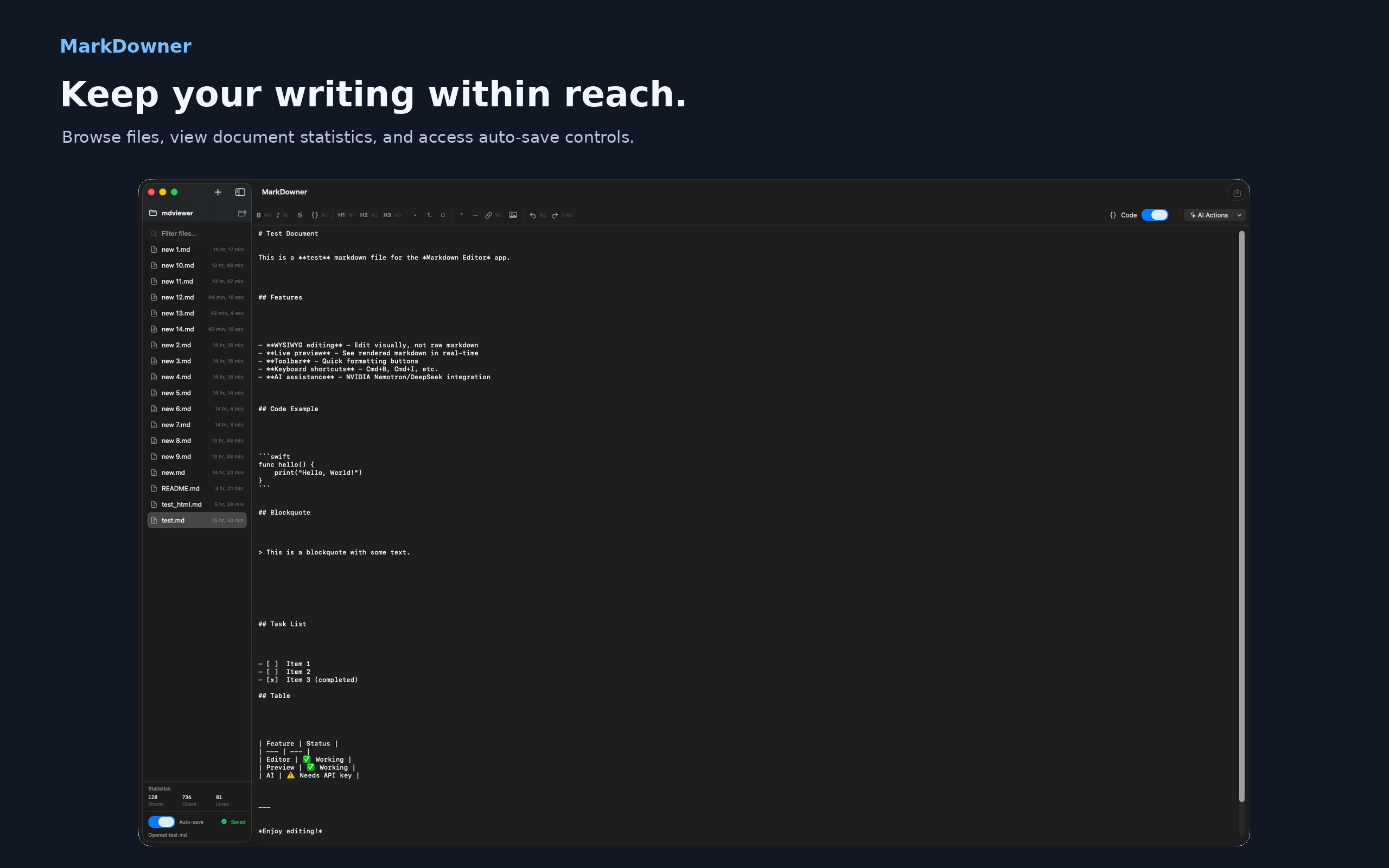
- Open Folder… shows the folder’s Markdown files in the sidebar. Type in Filter files to narrow the list.
- Open Recent lists your last ten files. Clear Menu empties it.
- You can also double-click a Markdown file in Finder, or drag it onto the Dr Mark icon.
Creating and saving
- New File creates
Untitled.mdin the open folder (thenUntitled 1.md, …). Without an open folder, Dr Mark asks where to save it. - Save (⌘S) writes the current tab. Save As… (⇧⌘S) saves a copy under a new name and switches the tab to it.
- Auto-save (on by default) saves a moment after you stop typing. Toggle it in the sidebar or in Settings. An orange dot on a tab means unsaved changes.
Tabs
Every open document has a tab above the style bar. Click a tab to switch, or its × to close it. Close Tab (⌘W) closes the current tab; when no tabs are left it closes the window. Your tabs are restored the next time you open Dr Mark.
Statistics
The sidebar shows the word, character and line count of the current document.
AI actions
AI features are optional and only run when you choose an action. Dr Mark sends text directly from your Mac to the provider you configure, using your own API key — see the Privacy Policy.
Setting up
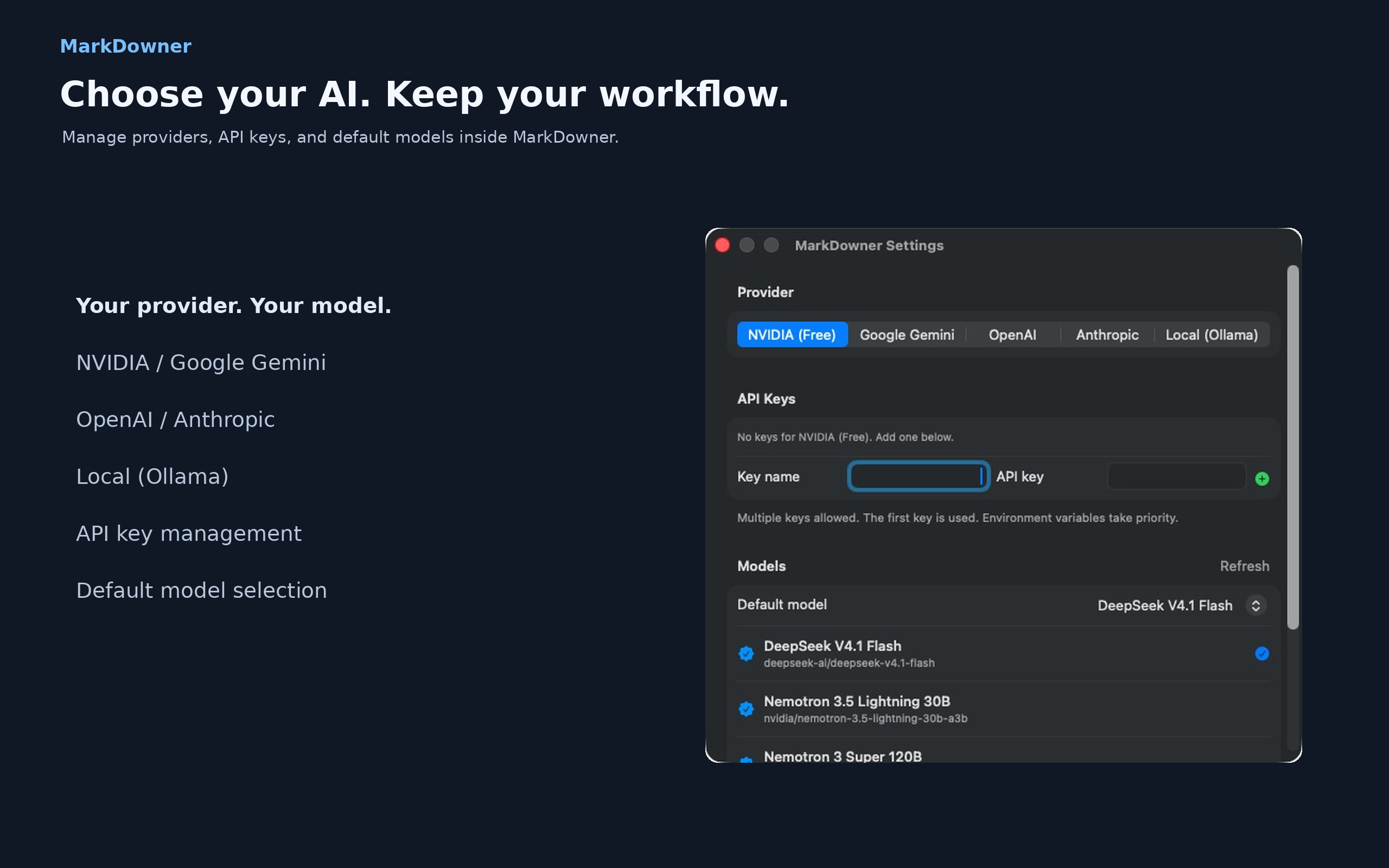
- Open Dr Mark ▸ Settings… (⌘,) and select the AI tab.
- Pick a provider: NVIDIA, Google Gemini, OpenAI, Anthropic or Local (an Ollama-compatible server at
http://localhost:11434). - Enter a name and your API key, then click +. Dr Mark loads the provider’s model list automatically; use Refresh to reload it.
- Choose the Default model. You can also add a custom model ID.
You can add several keys per provider; the first one is used. If an environment variable such as OPENAI_API_KEY, ANTHROPIC_API_KEY, GEMINI_API_KEY, NVIDIA_API_KEY or LOCAL_API_KEY is set, it takes priority.
Running an action
Select text (or nothing, to work on the whole document) and choose an action from the AI Actions menu. The button shows Working… while the request runs.
| Action | With a selection | Without a selection |
|---|---|---|
| Continue Writing | Continues the selected text | Continues the document at the cursor |
| Summarize | Inserts a summary of the selection | Inserts a summary of the document at the cursor |
| Improve Style | Rewrites the selection | Rewrites the whole document |
| Fix Grammar | Corrects the selection | Corrects the whole document |
| Fix Markdown | Repairs the selection’s Markdown syntax | Repairs the whole document |
| Custom… | Opens a window where you type your own instruction. The result is inserted at the cursor, replacing the selection. | |
Text inserted at the cursor can be undone with ⌘Z. Whole-document rewrites replace the text, so save a copy first if you want to keep the original. If no key is configured or the provider returns an error, Dr Mark shows a message and leaves your document untouched.
Settings
Open Dr Mark ▸ Settings… (⌘,).
General
- Theme — System, Light or Dark. Also available in View ▸ Appearance.
- Base font size — 8 to 32 px, also adjustable from the style bar or with ⌘+ / ⌘−.
- Auto-save documents
- Default App — shows whether Dr Mark opens your Markdown files. Click Make Dr Mark the Default or Set Again (if another app took over). macOS may ask you to confirm.
AI
Provider, API keys and models — see AI actions.
Export and print
- File ▸ Export as HTML… (⇧⌘E) saves a standalone, styled HTML page.
- File ▸ Print… (⌘P) prints the formatted document or saves it as PDF from the print dialog. Printing works from the visual editor.
Keyboard shortcuts
| Command | Shortcut | Command | Shortcut |
|---|---|---|---|
| New File | ⌘N | Bold | ⌘B |
| Open… | ⌘O | Italic | ⌘I |
| Open Folder… | ⇧⌘O | Strikethrough | ⇧⌘X |
| Save | ⌘S | Highlight | ⇧⌘H |
| Save As… | ⇧⌘S | Inline Code | ⌘E |
| Export as HTML… | ⇧⌘E | Clear Formatting | ⌘\ |
| Print… | ⌘P | Paragraph | ⌘0 |
| Close Tab | ⌘W | Heading 1–6 | ⌘1 – ⌘6 |
| Close Window | ⇧⌘W | Bulleted List | ⇧⌘8 |
| Settings… | ⌘, | Numbered List | ⇧⌘7 |
| Increase Font Size | ⌘+ | Task List | ⇧⌘9 |
| Decrease Font Size | ⌘− | Link… | ⌘K |
| Undo / Redo | ⌘Z / ⇧⌘Z | Table | ⌥⌘T |
| Quit | ⌘Q |
File types
Dr Mark opens and edits:
- Markdown:
.md,.markdown,.mdown,.mkd,.mkdn - R Markdown
.rmd, MDX.mdx, Cursor rules.mdc, Quarto.qmd - API Blueprint
.apib, Mermaid.mermaid/.mmd - Plain text
.txt - TextBundle packages
.textbundle
Troubleshooting
Markdown files still open in another app
Go to Settings ▸ General and click Make Dr Mark the Default (or Set Again), then confirm if macOS asks. Alternatively, in Finder select a .md file, choose File ▸ Get Info, pick Dr Mark under Open with and click Change All….
“Can’t open … file moved or access denied”
The file was moved or renamed, or macOS no longer allows access to it. Open it again with File ▸ Open…; Dr Mark will remember the new location.
New File asks where to save
That happens when no folder is open, or the open folder can’t be written to. Open a folder with File ▸ Open Folder… to create files there directly.
AI action failed
Check that a valid API key is set for the selected provider in Settings ▸ AI, that a default model is chosen, and that your Mac is online. For Local, make sure your model server is running.
Images don’t appear
Relative image paths are resolved from the document’s folder. Open the folder with File ▸ Open Folder… so Dr Mark has permission to read images next to your document.
Support
Questions or feedback? Email [email protected].